
Chapters
What is the Chapters feature?
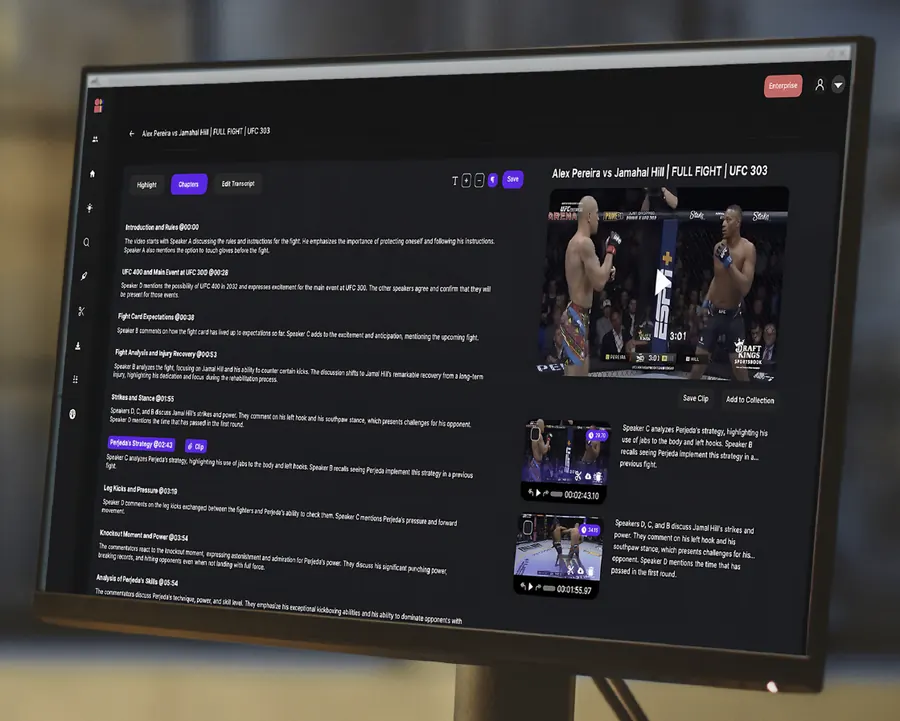
Chapters automatically segment your video into meaningful scenes, each with:
- A clippable moment
- A descriptive summary of what’s happening
This makes it easy to review, edit, and extract key highlights in chronological order.
How do I find chapterized content?
- Go to the Highlight to Edit section (pen icon in the left navigation bar).
- Upload or select a video (e.g., England vs Germany).
- Click on the Chapters tab.
- You’ll see a list of generated chapters, each with a title/description (e.g., “Germany takes the lead”) and the ability to preview, clip, download, or refine.
What types of videos does this work with?
Chaptering works well for:
- Podcasts
- Interviews
- Talk shows
- Sports broadcasts
- Documentaries
- Any structured or event-driven video
Can I edit or customize chapters?
Yes! You can:
- Adjust the head and tail (start and end time) of each chapter just like any clip in Clip Studio
- Rename or fine-tune descriptions if needed
- Export chapters individually or in bulk
Can I export chapters to Adobe Premiere or Da Vinci Resolve?
Yes, you can export selected chapters (or all of them) to Adobe Premiere via XML. This allows editors to start cutting directly from structured chapter points and re-connect with high-res files sitting locally. More information in Export to Premiere / Resolve, Single Clip and Export to Premiere / Resolve, Collections.
What’s the benefit for editors and producers?
This feature saves hours of manual scrubbing by:
- Structuring content into easy-to-digest scenes
- Making it simple to locate, preview and clip highlights
- Giving teams a clear narrative map of each video
Editors and producers have given this feature strong feedback for speed, usability, and storytelling efficiency.
Have questions about how to use chapters in your workflow or want help setting them up? Just reach out, we’re happy to help.