
Clip Studio
What is Clip Studio?
Clip Studio is Imaginario’s lightweight, browser-based editor that allows you to:
- Preview and fine-tune saved clips or collections
- Trim clips using scene detection
- Reframe for social formats like 9:16 (vertical) or 1:1 (square)
- Export clips or prepare them for editing in Adobe Premiere
Where do I find Clip Studio?
In the left-hand navigation bar, click the scissors icon to open Clip Studio.
What content can I edit in Clip Studio?
You can edit any saved clip, and any video or moment within a collection. Simply select a video to get started.
What features are available in Clip Studio?
- Resizable Timeline Preview, expand or contract the video timeline for easier trimming.
- Scene Detection (AI-Powered), automatically detects camera cuts or shot changes in the video. Especially useful for trimming clip heads and tails, moving precisely between scenes, and better keyframing when resizing for other screen sizes.
- Scene Navigation, step forward/backward between scenes quickly to find the best moment.
- Reframing for Social Formats, choose different aspect ratios (9:16, 1:1, etc.) and manually position the frame (e.g., center a character next to the pot).
- Subtitles and branding, add and edit subtitles (including animated ones) and add your logo. Everything you do here travels with the project file if you later export to Premiere or Resolve.
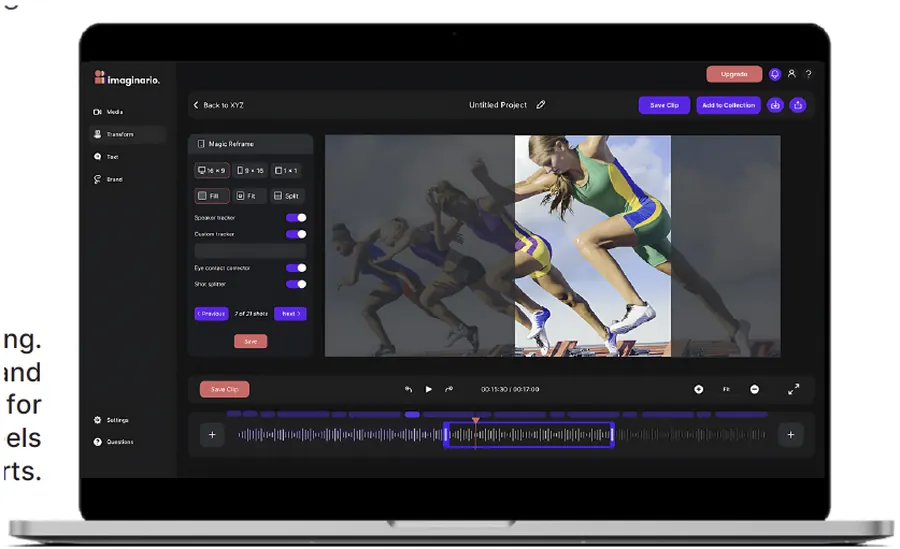
Multi-clip editing: send a whole collection
Clip Studio supports multiple clips, not just one at a time. Send an entire collection, clips you found across Search, Discovery, or Highlight to Edit, straight to Clip Studio for a multi-clip edit, then export the result to your favorite editing tool or download it locally to your computer.
StoryLab™ Single Clips integration
StoryLab™ Single Clips, the automatic vertical videos for TikTok, IG Reels, and YouTube Shorts, are now integrated with Clip Studio. Send a StoryLab™ clip to Clip Studio to:
- Customize subtitles with different fonts
- Enable speaker tracking across the clip
- Add graphics or branding
Can I download the edited clips?
Yes! You can download clips directly from Clip Studio, or click Premiere Export to generate an XML file that you can relink with local high-res assets in Adobe Premiere. More information in Export to Premiere / Resolve, Single Clip and Export to Premiere / Resolve, Collections.
This makes Clip Studio a great first-pass tool before handing off to post-production.
Who is Clip Studio for?
- Editors: to adjust clips found on Imaginario and prep rough cuts before Adobe Premiere export.
- Social media marketers: to create shareable social clips quickly.
- Other users without a professional editing background: to review and tweak clip framing without needing complex editing software.
Need help exporting to Premiere or reframing for social platforms? Let us know, we’ll walk you through it.